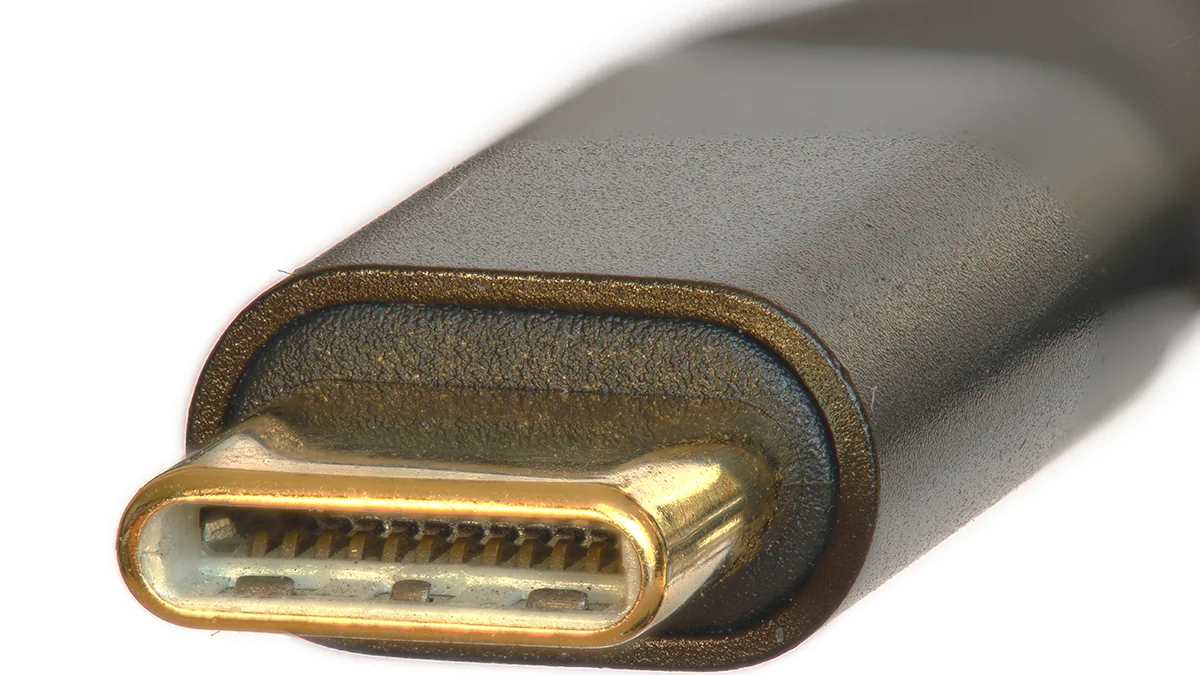
Your phone, laptop, tablet and earbuds case may all have the same small, oval port. USB-C was supposed to make life easier. One connector, fewer chargers, less searching through drawers.
Then you try a different cable. The phone charges, but a large video takes ages to copy. Another cable charges the laptop but gives you a blank screen when you connect a monitor. Everything fits. Something still refuses to work.
The reason is simple: USB-C tells you the connector’s shape. It does not tell you everything the port or cable can do. Charging power, data speed and video support are separate capabilities. Understanding that distinction makes most USB-C problems easier to solve.
What does USB-C actually mean?
USB-C and Type-C mean the same thing. The plug is the part on the cable; the port is the socket on the device. The reversible design lets you insert the plug either way up.
Beyond that familiar shape, several different technologies may be involved.
| Term | What it tells you |
|---|---|
| USB-C / Type-C | The connector type |
| USB 2.0, USB 3.2, USB4 | The data standard and its capabilities |
| USB PD / PPS | How compatible devices negotiate charging |
| GaN | A semiconductor technology used inside the charger |
| Thunderbolt | A connection standard with defined requirements for data, displays and other capabilities |
A basic phone and a powerful laptop can therefore have ports that look identical but behave very differently. Even two USB-C ports on the same laptop may offer different functions. Microsoft’s USB-C troubleshooting guide explains why the device, port and accessory all matter.

Why the version names are confusing
A listing that says “USB-C 3.1” combines two pieces of information: the connector and the data standard. It generally means a USB-C connection using USB 3.1 technology.
A USB-C port can operate at USB 2.0 speeds. An older rectangular USB-A port can support faster USB 3 connections. You cannot tell the speed by looking at the socket.
For shopping purposes, a clear speed rating such as 5Gbps, 10Gbps or 40Gbps is more useful than a string of version names.
Why a powerful charger may still charge your phone slowly
Basic USB-C charging does not require USB Power Delivery. With USB PD, however, compatible devices exchange information before using higher power levels. The charger offers supported power settings, and the device requests one it can use.
A 100W charger does not force 100 watts into a phone. That number describes its maximum output. A compatible phone draws only the power it can accept.
The available charging speed also depends on the protocol. A phone rated for 45W may need a particular combination of voltage, current and charging support. A 65W charger that lacks those settings may charge it more slowly.
PPS, or Programmable Power Supply, is an optional USB PD feature that allows finer voltage adjustments during charging. Some phones need PPS to reach their supported fast-charging speeds. Proprietary systems, such as SuperVOOC, may need a compatible charger and cable of their own.
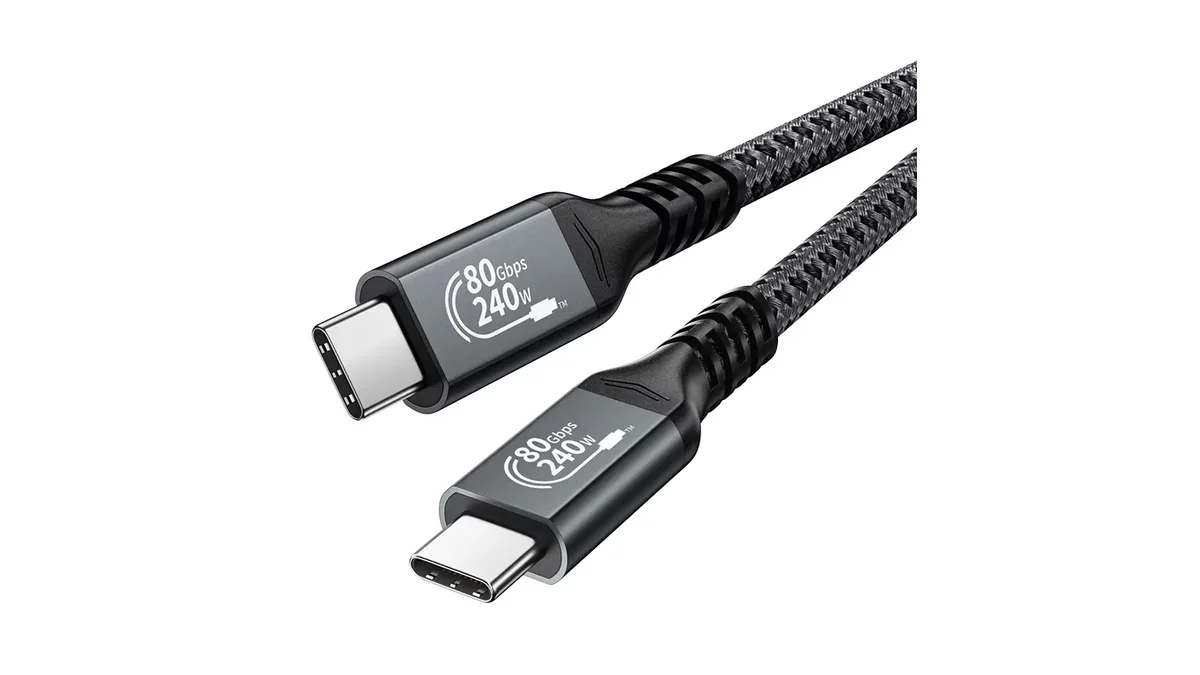
USB Power Delivery supports power levels up to 240W with the appropriate equipment. That is the standard’s capability, not a promise that every USB-C charger, cable or device supports it.
Can you charge a phone with a laptop charger?
Usually, yes, when the charger and cable meet the relevant standards and are compatible with the phone. Higher advertised wattage alone does not make a charger unsuitable.
The reverse is less certain. A phone charger may charge a USB-C laptop slowly, fail to keep up while it is running, or provide too little power for charging to start. Check the laptop’s charging requirements and which port accepts power.
Does fast charging mean fast file transfers?
No. Power and data have separate ratings.
Watts (W) describe power. Mbps and Gbps describe data transfer rates. A cable can support high charging power while carrying data only at USB 2.0’s 480Mbps.
This is why a cable that charges a laptop well may be a poor choice for an external SSD. Look for both ratings. If you need a display connection, check video support too.
What do 60W, 100W and 240W on a cable mean?
These figures describe the cable’s supported power capacity under the specified conditions. You will see older 100W cables alongside 60W and 240W products.
A 240W cable will not make a 25W phone charge at 240W. The charger and device must also support the required power.
Some cables contain an e-marker, a small chip that identifies their capabilities to connected equipment. It is required for certain higher-current and higher-performance cables. Its presence alone does not mean a cable offers the fastest data rate or every video feature.
Length matters as well. A long cable may need a different design to maintain a high data rate. Buy for the speed and length you need, rather than assuming that a thick cable or braided covering proves quality.
What is a GaN charger?
GaN stands for gallium nitride. Charger manufacturers use this semiconductor material in power components to build efficient, compact designs. That is why a charger small enough for a phone can sometimes supply enough power for a laptop. Infineon explains how GaN works in chargers.
GaN does not automatically mean faster charging. If two compatible chargers supply the same power to your phone, the GaN label alone will not increase the speed. Nor does it mean the charger stays cold. Design, load and surrounding temperature still matter.
You do not need a special “GaN cable”. You need a cable suitable for the device and power level. If your existing charger meets your needs, there is no reason to replace it just for the label.
How do multiport chargers divide the power?
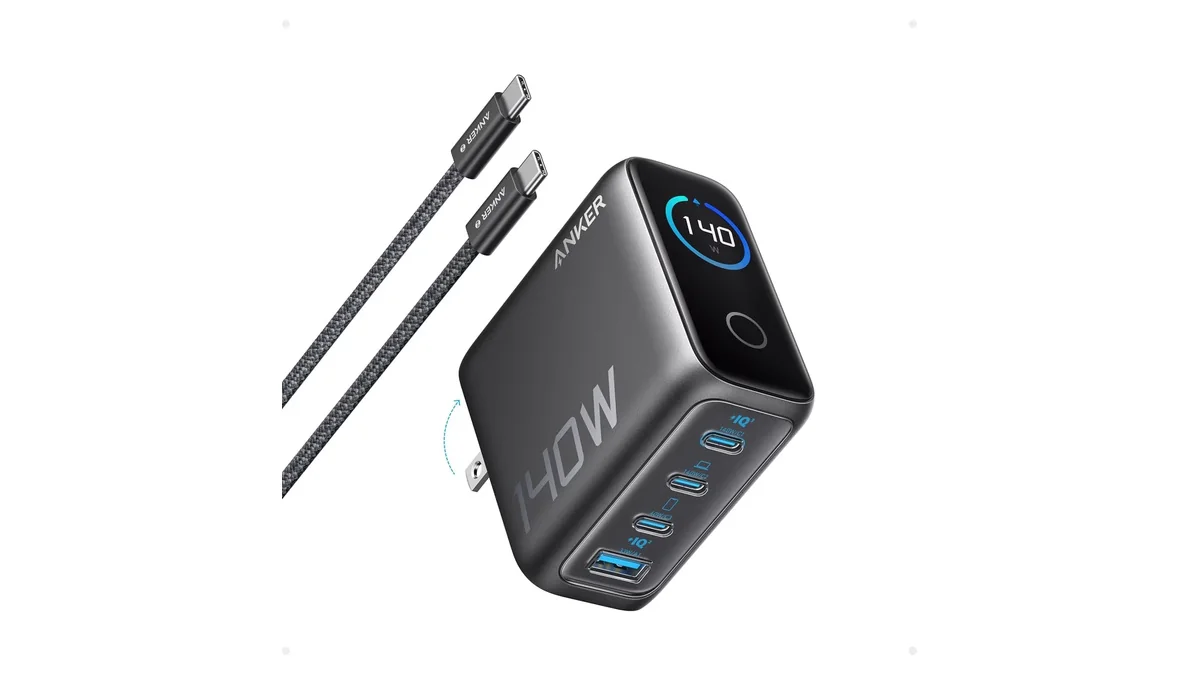
A charger marked 100W does not necessarily supply 100W from every port at once. That figure may describe its total output, or the maximum available from one port when used alone.
Connecting a second device can reduce the power available to the first. Check the manufacturer’s power distribution chart, including the combinations of ports you plan to use.
MagSafe and Qi2: where USB-C still matters
On compatible iPhones, MagSafe uses magnets to align a wireless charger with the phone. The phone charges wirelessly, but the charging puck still needs power from an adapter, commonly through USB-C.
The phone, puck and adapter all affect charging speed. An older adapter or an unsuitable case can limit performance. Check the requirements for your particular phone and charger rather than relying on the word “MagSafe”.
Qi2 brings magnetic alignment to compatible wireless-charging products from different manufacturers. Supported power varies by device and charger. Magnetic attachment by itself does not establish a product’s charging speed or certification.
MacBook MagSafe is different. It is a magnetic cable connector used for wired charging. Compatible MacBooks can also charge through their USB-C ports, subject to the model’s requirements.

Why USB-C data speeds vary so much
A USB-C connection may carry data at 480Mbps, several gigabits per second, or much higher rates. The connector gives you no reliable visual clue.
The naming history adds to the confusion. USB 3.0, USB 3.1 Gen 1 and USB 3.2 Gen 1 refer to the same 5Gbps speed class. Other labels describe different capabilities.
| Common label | Advertised maximum link rate |
|---|---|
| USB 2.0 | 480Mbps |
| USB 3.0 / USB 3.1 Gen 1 / USB 3.2 Gen 1 | 5Gbps |
| USB 3.1 Gen 2 / USB 3.2 Gen 2 | 10Gbps |
| USB 3.2 Gen 2×2 | 20Gbps |
| USB4 products | Check the product’s stated speed, such as 20, 40 or 80Gbps |
These are link rates, not guaranteed file-copy speeds. The drive, device, software and type of files also affect the result.
There is another common misunderstanding: the small b in Gbps means bits; the capital B in GB means bytes. Eight bits make one byte. A 10Gbps link therefore corresponds to 1.25GB per second before overhead and other limitations. Actual file transfers will be slower.
Changing the cable helps only when the cable is the limiting part. A faster cable cannot make a slow phone port or drive run beyond its capabilities.
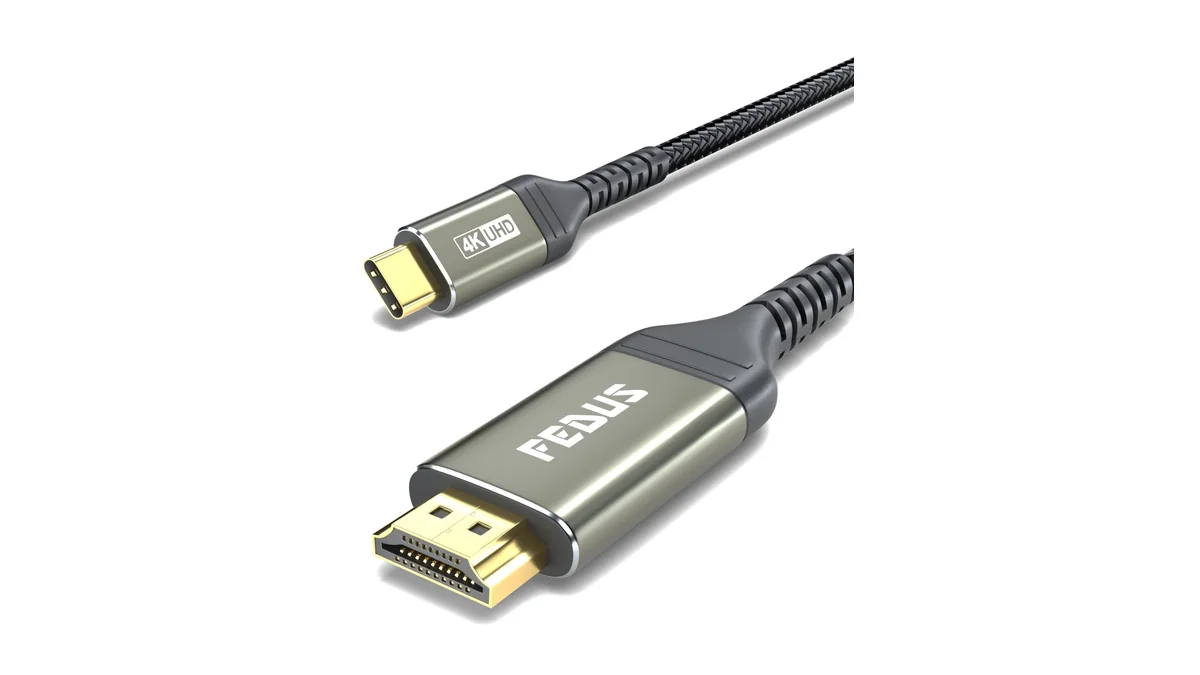
Why does a USB-C to HDMI cable give a blank screen?
The device must support video output through its USB-C port. A common method is DisplayPort Alternate Mode, usually shortened to DP Alt Mode.
A conventional USB-C to HDMI adapter uses that video output. It cannot add the feature to a phone or laptop that lacks it. Many phones have USB-C ports without wired display support. Even within a product family, there can be exceptions. Check the exact model; Apple’s USB-C guide lists supported iPhone connections.
If the device does support video, check the rest of the connection: the cable, adapter, monitor input, resolution and refresh rate. A USB-C socket on a monitor may serve a different purpose from the one you expect.
Can one cable handle the monitor and laptop charging?
Yes, with compatible equipment. The monitor must accept video and supply enough power to the laptop. The laptop port and cable must support both functions. A USB-C socket alone does not establish any of that.
What do Thunderbolt and USB4 add?
Thunderbolt 3, 4 and 5 use the USB-C connector. Their certification requirements help define the capabilities available across compatible computers, cables and accessories.
Thunderbolt 3 and 4 support link speeds up to 40Gbps. Thunderbolt 4 introduced stricter minimum requirements rather than doubling that headline speed. Thunderbolt 5 supports up to 80Gbps in both directions, with a Bandwidth Boost mode that can provide up to 120Gbps in one direction for display-heavy use. That is not a promise of file transfers at 120Gbps. Intel’s Thunderbolt guide describes these differences.
USB4 and Thunderbolt share technology, but the names are not interchangeable. Check the computer and accessory specifications for the speed, display support and compatibility you need.
A Thunderbolt cable cannot turn an ordinary USB-C port into a Thunderbolt port. Likewise, a dock may offer reduced functionality, or fail to work, when connected to a port that lacks its required features.
Why does a USB-C headphone adapter produce no sound?
USB-C to 3.5mm adapters are not all the same. Many phones require an adapter with a built-in DAC, or digital-to-analogue converter. It turns digital audio into the signal wired headphones need.
A passive adapter without that chip may work only with devices that provide analogue audio through USB-C. Check compatibility with your phone model before buying.
How to choose the right USB-C cable
Start with the job you need it to do.
| Your need | What to check |
|---|---|
| Phone charging | Supported charging protocol, required power and a suitable cable |
| Laptop charging | USB-C charging support, the correct port and sufficient charger output |
| External SSD or large file transfers | Data rates supported by the device, port, cable and drive |
| Monitor connection | Video output, a compatible cable or adapter, resolution and refresh rate |
| Thunderbolt dock | Compatibility across the computer, dock and cable |
| Several devices charging together | Power available from each port when used simultaneously |
A cable marked “240W, USB 2.0” can be useful for charging but slow for data. A high data rating does not, by itself, tell you the cable’s power capacity.
If the markings are missing, look up the manufacturer and model. Charging successfully does not prove a cable’s maximum power, data speed or video support.
Once you know what each cable can do, label it: “laptop charging”, “monitor” or “fast data”. A small label can save a lot of trial and error.
Quick checks when something does not work
- Phone charging slowly? Check that the charger supports the phone’s charging protocol and that the cable meets its requirements.
- Laptop not charging? Check the charger’s output and use a port that accepts charging.
- Phone charges but files do not appear? Use a data-capable cable. On Android, unlock the phone and select File Transfer when prompted.
- Monitor stays blank? Confirm video support, select the correct monitor input and check the cable or adapter.
- Files copy slowly? Check every part of the connection, including the drive and the port.
- Headphone adapter is silent? Check whether the phone needs an adapter with a built-in DAC.
Frequently asked questions
Are all USB-C cables interchangeable?
They may fit the same sockets, but their power, data and video capabilities can differ. Choose one that supports the task.
Will a higher-wattage charger damage my phone?
A compatible, standards-compliant charger does not force its maximum output into the phone. Use reputable equipment and follow the device manufacturer’s requirements.
Is a thicker cable better?
Thickness and a braided covering do not establish performance. Check the ratings, compatibility and product quality.
Do I need a Thunderbolt cable just to charge a phone?
Usually, no. A suitable charging cable is enough. Pay for extra capabilities when your devices and intended use require them.
Is an old USB-A to USB-C cable still useful?
Yes, for compatible charging and data tasks. It will not provide all the capabilities available through some USB-C to USB-C connections.
The same plug can do different jobs
USB-C has made connecting devices easier. We no longer have to turn the plug over repeatedly, and one charger can often serve several devices.
What it has not done is make every connection identical. When something fails, check what the device supports, what the port provides, what the cable carries and what the charger or accessory requires.
The plug needs to fit. The capabilities need to match.